Welcome to Ubuntu File Managers
Abstract
When it comes to files and directories in Linux many people have trouble without windows explorer. Since the ability to handle files is critical to commputers we are going to review a few file managers for Linux.

1. Windows Explorer
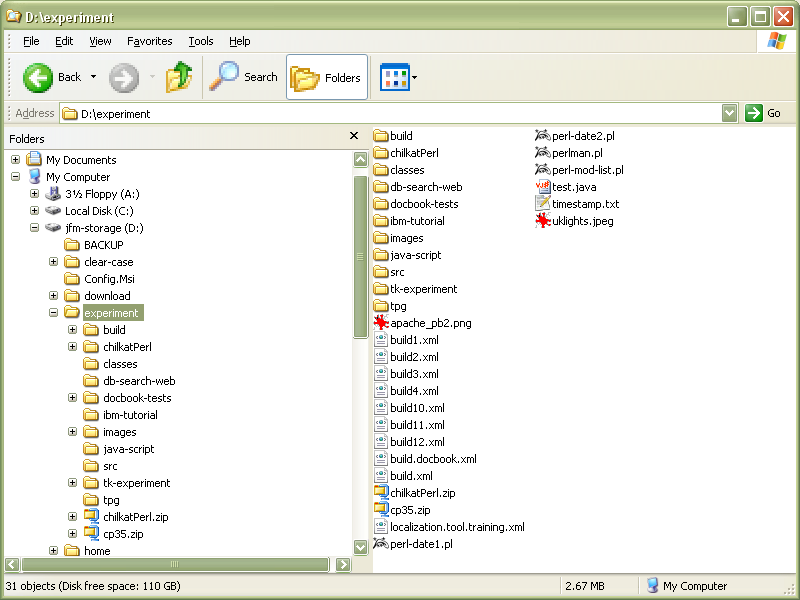
Using Windows Explorer
You might need to be logged on as an administrator or a member of the Administrators group in order to perform some tasks.
Windows Explorer displays the hierarchical structure of files, folders, and drives on your computer. It also shows any network drives that have been mapped to drive letters on your computer. Using Windows Explorer, you can copy, move, rename, and search for files and folders. For example, you can open a folder that contains a file you want to copy or move, and then drag the file to another folder or drive.
There are other places in Windows where you can view and work with files and folders. My Documents is a convenient place to store documents, graphics, or other files you want to access quickly. You can also view My Network Places, which lists other computers that are connected to your local area network (LAN). When you delete files or folders from your hard disk, Windows places them in the Recycle Bin, where you can retrieve them, until you empty the Recycle Bin. Files or folders deleted from a floppy disk or a network drive are permanently deleted and are not sent to the Recycle Bin.
To open Windows Explorer, click Start, point to Programs, point to Accessories, and then click Windows Explorer.
For more information, click Related Topics.
2. Nautilus
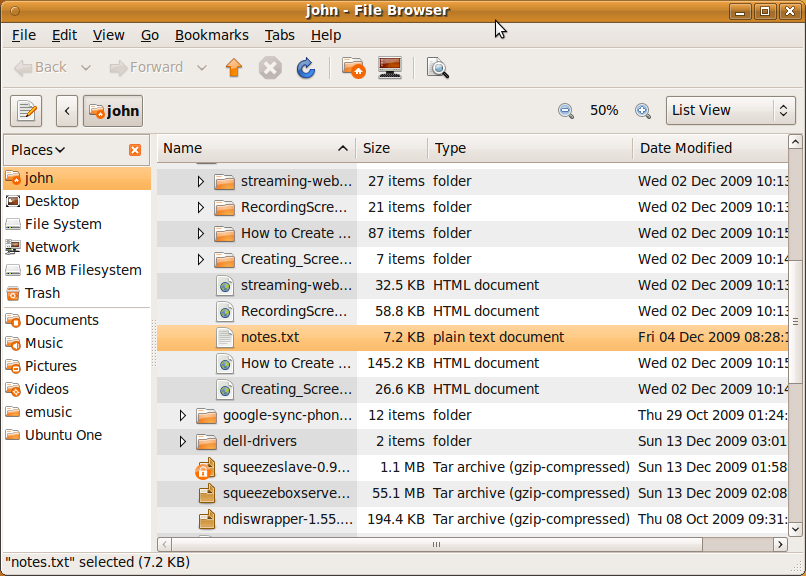
The first file browser of interest is Nautilus. This is the default file browser on most Linux systems.
This display is showing the folders in list view. I perfer it since you can expand the tree by clicking the arrow next to the folder name. If you use icon view it will open a separate window for each folder.
Here is a description from Gnome Documentation Library
The Nautilus file manager provides a simple and integrated way to manage your files and applications. You can use the file manager to do the following:
Create folders and documents
Display your files and folders
Search and manage your files
Run scripts and launch applications
Customize the appearance of files and folders
Open special locations on your computer
Write data to a CD or DVD
Install and remove fonts
The file manager lets you organize your files into folders. Folders can contain files and may also contain other folders. Using folders can help you find your files more easily.
Nautilus also manages the desktop. The desktop lies behind all other visible items on your screen. The desktop is an active component of the way you use your computer.
3. emelFM2
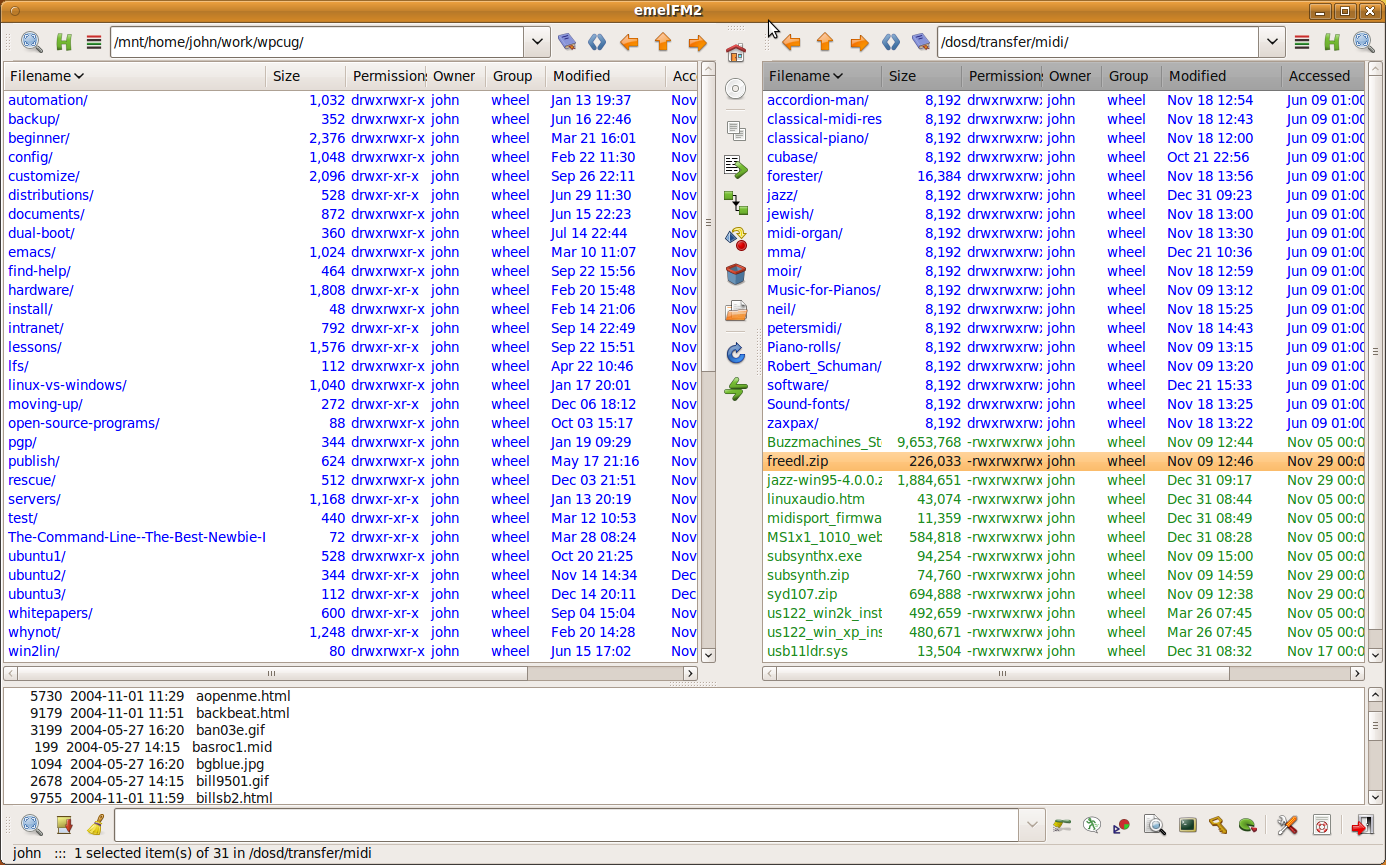
EmelFM2 is an interesting 2 pane file browser.
Here are some highlights from the User manual available at EmelFM2 User Guide
FINDING ITEMS
ENTRY COMPLETION
KEY BINDINGS
SELECTION
DRAG & DRO
TRASH
OPERATIONS ON FILES AND DIRECTORIES
BOOKMARKS
TEXT FILE VIEWING
TEXT FILE EDITING
PLUGINS
access control list plugin
clone plugin
copy plugin
crypt plugin
disk usage plugin
directory compare plugin
find plugin
find by name, by content. by mime. by mtime, by atime, by ctime, by size, by permission. by owner, by type
foreach plugin
glob plugin
move plugin
names copy plugin
pack plugin
rename plugin
sort-by-extension plugin
thumbnails plugin
timeset plugin
tracker plugin
unpack plugin
view plugin
CONFIGURATION
COMMANDS
INTERNAL COMMANDS
COMMAND MODIFIERS
MACROS
ALIASES
OTHER SUBSITITUTION
COMMUNICATION WITH CHILD PROCESSES
4. Worker
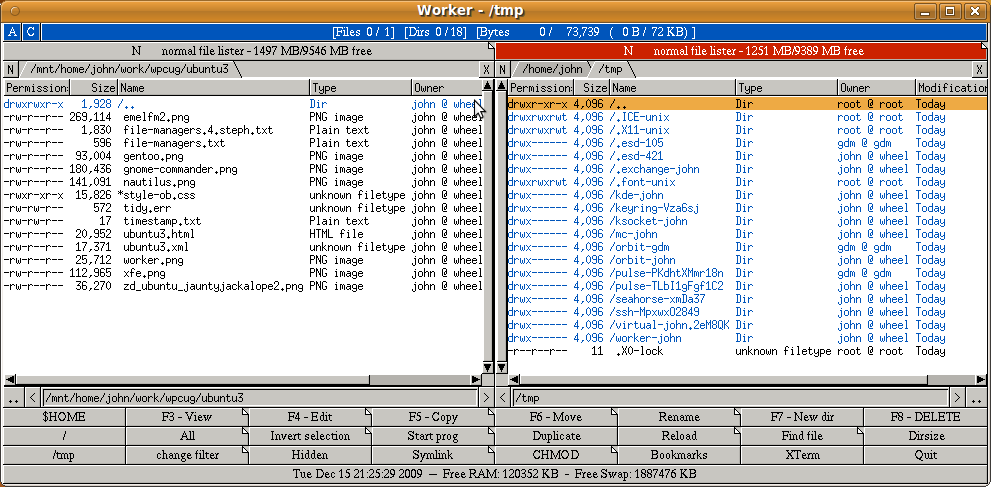
Worker is a file manager for the X Window System on UN*X.
Here is a list of the attributes as listed on the Worker home page Worker File Manager
low requirements (basically only the X11 libraries)
fast and easy access to archives and remote sites Browse tar/tgz/tbz, gzip, bzip2, zip, rar, ar (also supporting extfs: lha, zoo, rpm, iso9660, diff, arj, cpio, …) in any combination (zip files in tar archives, rar archives in CD iso images,…). Access ftp sites without third party tools.
many built-in functions like:
copy, move, rename, delete files
create directory
create/change symlinks
chmod, chown
and many more…
text viewer
tabs
file search
flexible file type system with arbitrary file type actions for single file types or groups of types
context menu to access file type actions
bookmarks for frequently used directories
labels can be assigned to entries to make it easier to find important files
volume manager for mounting/unmounting devices (HAL supported)
filter file view by string pattern or label
assign any external command to buttons, hotkeys or filetypes (e.g. gimp, tar, diff, mount, …)
UTF8 support
built-in configuration GUI
5. Gentoo
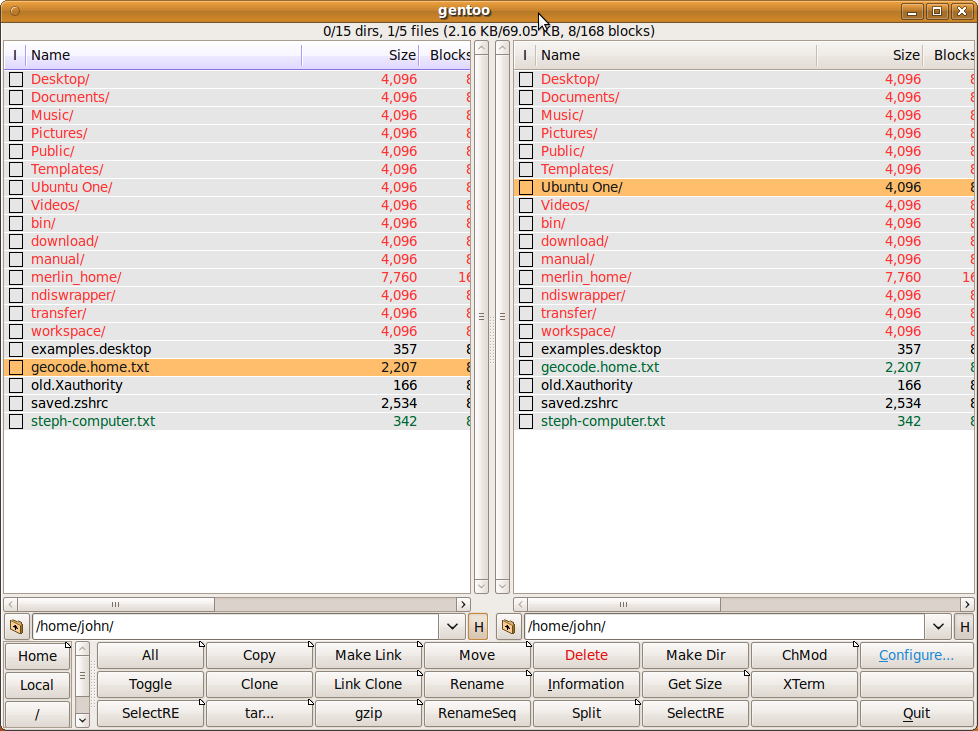
This is the new, slightly simpler, home page for gentoo, the GTK+ file manager. The old site design has served well, but it was time for a refresh for the new 0.15.x series of gentoo. This new version of gentoo is based on the current 2.x series of the GTK+ toolkit, finally bringing gentoo into the present (the last version of GTK 1.2 was released in 2001). It’s good to be back.
Here is a list of the attributes as listed on the Gentoo home page Gentoo File Manager
Reasonably small and fast (written in C).
Direct graphical configuration of most main features.
A powerful file recognition system that allows you to configure how files of different types are listed (what colors and icons), and what happens when you doubleclick them (start image viewers, music players, etc).
Includes more than 120 original pixmap icons.
Native support for most file operations (copy, move, rename, makedir etc).
Free Software, licensed under the GNU General Public License.
6. Xfe
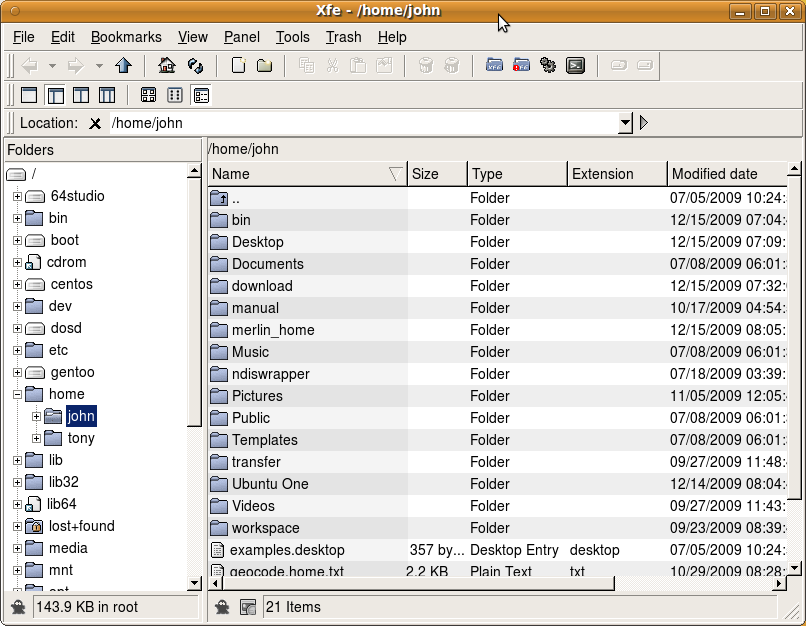
X File Explorer (Xfe) is an MS-Explorer or Commander like file manager for X. It is based on the popular, but discontinued, X Win Commander, originally developed by Maxim Baranov. Xfe is developed since 2002 by Roland Baudin, a french Linux enthusiast.
Here is a list of the features from XFE feature page.
Very fast graphic user interface
Small memory footprint
UTF-8 support (through the FOX 1.6 library)
Commander/Explorer interface with four file manager modes : a) one panel, b) directory tree and one panel, c) two panels, and d) directory tree and two panels
Integrated text editor (X File Write, xfw)
Integrated text viewer (X File View, xfv)
Integrated image viewer (X File Image, xfi)
Integrated RPM or DEB packages viewer / installer / uninstaller (X File Package, xfp)
Copy/cut/paste files from and to your favorite desktop (GNOME/KDE/XFCE/ROX)
Drag and Drop in Xfe and from and to your favorite desktop
Root mode with authentication by su or sudo
Status line
File associations
Optional trash can for file delete operations (compliant with Freedesktop standards)
Auto save registry
Double click or single click files and directories navigation
Mouse right click pop-up menu in tree list and file lists
Change file attributes
Mount/Unmount devices (for Linux only)
Toolbars
Bookmarks
Back and forward history lists for directory navigation
Path linker for directory navigation
Color themes (GNOME, KDE, Windows, …)
Icon themes (Xfe, GNOME, KDE, XFCE, Tango, Windows…)
Create / Extract archives (tar, compress, zip, gzip, bzip2, lzh, rar, ace, arj and 7zip formats are supported)
Tooltips with file properties
Progress bars or dialogs for lengthy file operations
Thumbnails image previews
Configurable key bindings
Startup notification
Ability to enqueue multimedia files (open command)
Available in 19 languages
and much more…
7. Midnight Commander
At the beginning of chapter 4 in TLCL there is a discussion of GUI-based file managers versus the traditional command line tools for file manipulation such as cp, mv, and rm. While many common file manipulations are easily done with a graphical file manager, the command line tools provide additional power and flexibility.
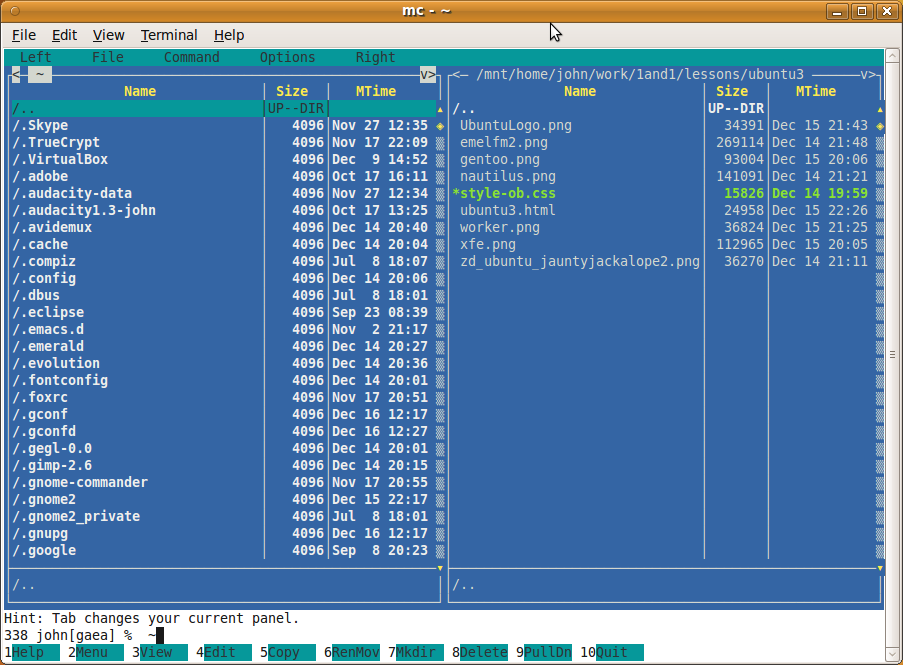
In this adventure we will look at Midnight Commander, a character-based directory browser and file manager that bridges the two worlds of the familiar graphical file manager and the common command line tools.
The design of Midnight Commander is based on a common concept in file managers: dual directory panes where the listings of two directories are shown at the same time. The idea is that files are moved or copied from the directory shown in one pane to the directory shown in the other. Midnight Commander can do this, and much, much more.
Features
Midnight Commander is quite powerful and boasts an extensive set of features:
Performs all the common file and directory manipulations such as copying, moving, renaming, linking, and deleting.
Allows manipulation of file and directory permissions.
Can treat remote systems (via FTP or SSH) as though they were local directories.
Can treat archive files (like .tar and .zip) as though they were local directories.
Allows creation of a user-defined “hotlist” of frequently used directories.
Can search for files based on file name or file contents, and treat the search results like a directory. Midnight Commander
8. Install Fest Preparation

For our January 2010 meeting we are planning on having an Install Fest. If you bring in your computers we will help you install Ubuntu on them.
Recommended minimum requirements
Ubuntu should run reasonably well on a computer with the following minimum hardware specification. However, features such as visual effects may not run smoothly.
700 MHz x86 processor
384 MB of system memory (RAM)
8 GB of disk space
Graphics card capable of 1024x768 resolution
Sound card
A network or Internet connection
– Installation System Requirements
Before you bring in your computer we would like to ask you to do a test on your computer. This will help us make sure the computer is capable of running Ubuntu.
Please download the installation CD from Ubuntu Download and burn it to a CD. There is help for burning a CD available at Burning ISO Howto.
Next we would ask you to try to boot from the CD. This is on the second screen listed as: Try Ubuntu without any change to your computer. If your computer boots and runs from the CD we can probably perform the install. But if the computer will not run from the CD we might not be able to install Ubuntu on that machine.
Finally if you would like to get an overview of the install process have a look at Graphical Install for Ubuntu.
Written by John F. Moore
Last Revised: Wed Oct 18 11:01:36 EDT 2017

This work is licensed under a Creative Commons Attribution-NonCommercial-ShareAlike 3.0 Unported License.