Table of Contents
- How to Pick a Distribution?
- What is a distribution
- What differentiates one distribution of Linux from another?
- Who is the target audience for this distribution?
- Is this distribution based on some other distribution?
- How much help can I find for this distribution and what type is it?
- How do I maintain this distribution?
- Does this distribution contain and/or support application Z?
- Conclusion
How to Pick a Distribution?

How about toss a coin?
Picking a Linux distribution can be a complex task if you want to go through a evaluation process. In this presentation I have tried to give you some tools to allow you to make intelligent decisions about which distribution to use.
To summarize the best way to make a decision is to spend some time learning about distributions. Spend some time talking to people who are more familiar with Linux. And finally plan on spending some time learning about what ever distribution you choose.
Probably the most important issue is that no matter what distribution you choose, it will only be as good as you make it.
An interesting web page I found was DistroScreens. They have screen shots of a large number of distributions. So you can get a preview of what a particular distribution will look like once it is installed.
What is a distribution
A Linux distribution (often abbreviated as distro) is an operating system made from a software collection, which is based upon the Linux kernel and, often, a package management system. Linux distribution
Most of us get our version of Linux by downloading a distribution from a web site, and using the included installer. Using this method greatly simplifies the process of getting Linux up and running on a computer.
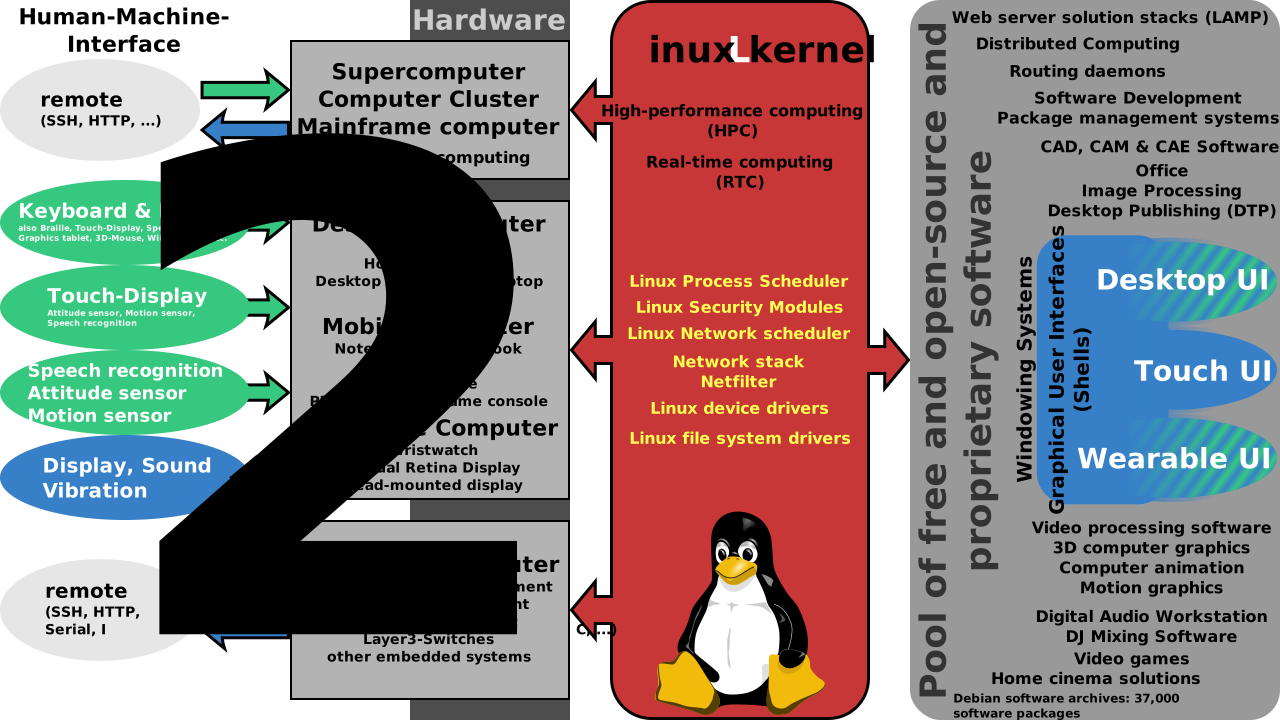
For a more detailed discussion see: Linux distribution
What differentiates one distribution of Linux from another?

So here you are, ready to install Ubuntu Linux, and someone asks you, “Why aren’t you using Suse instead?”.
Do you given them a dirty look and tell them to get lost, or do you have a reason for picking that distribution over the others.
Now there is nothing wrong with saying something like, “This is the one my niece gave me.” or even “The review in Linux Journal sounded interesting”. The real question is, did you pick this distribution for a reason, or was it simply a roll of the dice.
Lets see if we can start off by defining some parameters we could use to compare one distribution to another.
Who is the target audience for this distribution?
Is this distribution based on some other distribution?
How much help can I find for this distribution and what type of help is it?
How do I maintain this distribution?
Does this distribution contain and/or support application Z?
Before I continue I should clarify what I am not going to cover in this talk. I purposefully left out specialized distributions. There are a lot of distributions aimed at specific tasks. Some are rescue disks, some are designed for specific tasks such as firewalls, routers, or terminal servers. Unix has a strong tradition of being used in Turnkey systems, and Linux has taken this a step further.
My aim in this talk is to discuss how the user might decide what is the best distribution for her. And it might even encourage you to explore different distributions to appreciate what makes them different. I am not passing judgment over any particular distribution, there are plenty of critics for that dubious task. I am trying to teach you how to make your own decisions.
Who is the target audience for this distribution?

Some distributions are aimed at specific types of users. This does not mean they will only work for those users, but it does mean that the design decisions were made with those users in mind. I have selected a few distributions here based on the most popular distributions as listed at www.DistroWatch.com
Linux Mint: The purpose of Linux Mint is to produce a modern, elegant and comfortable operating system which is both powerful and easy to use.
Linux Mint is one of the most popular desktop Linux distributions and used by millions of people. — Linux Mint About Us
Red Hat: This distribution is aimed squarely at the corporate IT centers. The distribution is tuned to be stable, long lived, and tightly configured. These qualities lead to a some what unexciting distribution, but for it’s intended audience, that is what they want.
You might ask why a home user might be interested in Red Hat Linux. The answer is that for some people it might be more valuable to have a stable, long lived distributing. Additionally, RPM has been one of the most common distribution package types. Note this is a commerical Linux, meaning it costs money to purchase. The yearly fee includes paid support. The Centos distribution uses the same code and is free.
Red Hat Enterprise Linux is the leading platform for open source computing. It is sold by subscription, delivers continuous value and is certified by top enterprise hardware and software vendors. From the desktop to the datacenter, Enterprise Linux couples the innovation of open source technology and the stability of a true enterprise-class platform. — Redhat Enterprise Linux
Debian: is the epitome of what free software is all about. The developers who make up Debian are fanatical about free software. This purest attitude can sometimes get in the way of fully functional software. But the thing which makes Debian a force to be reckoned with is the skill and dedication of these developers.
Debian is probably one of the most common bases used to build a new distribution, ie Ubantu, and Knoppix to name a couple. It has inherited the drive and philosophy of Richard Stallman, the grand dad of Free software.
The Debian Project is an association of individuals who have made common cause to create a free operating system. This operating system that we have created is called Debian.
An operating system is the set of basic programs and utilities that make your computer run. At the core of an operating system is the kernel. The kernel is the most fundamental program on the computer and does all the basic housekeeping and lets you start other programs. — Debian about Debian
Ubuntu: is the version of Linux used by many beginners. It learned from may other distrubutions when it started, and has continued to supply great support. The installer is one of the best at detecting hardware. It’s biggest competitor is Linux Mint which evolved from Ubuntu.
Ubuntu comes with everything you need to run your organisation, school, home or enterprise. All the essential applications, like an office suite, browsers, email and media apps come pre-installed and thousands more games and applications are available in the Ubuntu Software Centre. — Ubuntu desktop overview
Suse: was originally a German distribution of Linux. It was later purchased by Novell in an attempt at making a Linux that is everything to everyone. Today it is a separate company based in England. This distribution is aimed at the commerical use of Linux by partnerships with many commerical software application companies from SAP, IBM, and Microsoft. It is tightly integrated with Virtual Systems.
Servers based on SUSE Linux Enterprise are some of the most reliable, efficient, cost-effective software infrastructure systems available. With SUSE Linux Enterprise Server, you benefit from our award-winning support and vast open source technology network. — SUSE Linux Enterprise Server
Gentoo: is a Linux aimed at the advanced user who wants maximum configurability in their distribution. They make no bones that they are only for the expert administrator. Unless you are already reasonably skilled at Linux this is not a distribution for you. It requires you to know what you want and be willing to spend the time and effort to create a custom installation.
Gentoo is a free operating system based on either Linux or FreeBSD that can be automatically optimized and customized for just about any application or need. Extreme configurability, performance and a top-notch user and developer community are all hallmarks of the Gentoo experience. — What is Gentoo?
Linux From Scratch this is considered to be the ultimate DIY (Do It Yourself) build. For those of you who are serious about understanding Linux, or just brave enought to go to the source, I have included this distribution.
No this is not a joke, the best way to get a full picture of the internal structure and decisions that go into a distribution, is to build one yourself. No this is not equivalent to becoming the next Linus Torvalds, but it will give you a much deeper understanding of what goes into a distribution.
This is not a task for the faint of heart since you will be expected to handle options that are normally only seen by a senior programmer. But for those who have both the time and the interest, it is the ultimate distribution.
Linux From Scratch (LFS) is a project that provides you with the steps necessary to build your own custom Linux system. There are a lot of reasons why somebody would want to install an LFS system. The question most people raise is “why go through all the hassle of manually installing a Linux system from scratch when you can just download an existing distribution like Debian or Redhat”. That is a valid question which I hope to answer for you. The most important reason for LFS’s existence is teaching people how a Linux system works internally. Building an LFS system teaches you about all that makes Linux tick, how things work together, and depend on each other. And most importantly, how to customize it to your own taste and needs. — Linux From Scratch - Audience
So for anyone who is curious, I have included a downloaded copy of the book Linux From Scratch in this lesson. Enjoy
I know there are many other distributions of Linux. DistroWatch lists the top 100, by their downloads from their site. You should consider having a look there for links to many more distributions.
Is this distribution based on some other distribution?

When Linux was first written is was based on an earlier OS know as Minix. Minix was a rewrite of AT&T Unix by a college professor, Andrew S. Tanenbaum. He wanted to use source code in his computer science class and did not want interference from AT&T’s lawyers over copy right. Unix from AT&T had been used for years at universities to teach about operating systems and was available in source code. But once AT&T decided that they could make money by selling Unix, they disallowed the universities from distributing the source code.
I bring up this history to show how Linux has built upon previous code. In a similar way, many of today’s Linux distributions started out as other distributions. The logic is that it is easier to start with an existing distribution than to start from scratch.
Distribution History
The following graphic is from Linux Distribution Timeline which is a good overview of the history of distributions.

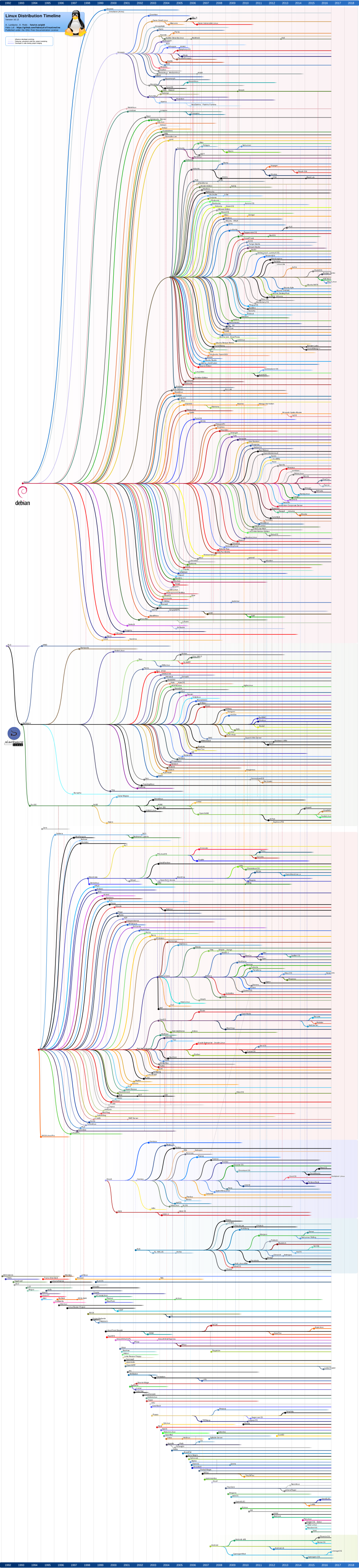
Yes the display is small, click on it to see a full size view that is readable.
Lets have a look at some of the early distributions. These are the ones that formed the basis of later distributions
SLS / Slackware
One of the first distributions I knew about was Slackware. This distribution was available on floppy disks, although you had to install it on a hard disk to use it.
Softlanding Linux System (SLS) was one of the first Linux distributions. It was founded by Peter MacDonald[1] in May 1992.[2][better source needed] Their slogan at the time was “Gentle Touchdowns for DOS Bailouts”.
SLS was the first release to offer a comprehensive Linux distribution containing more than the Linux kernel, GNU, and other basic utilities, including an implementation of the X Window System.Softlanding Linux System
To put this in perspective, the first announcement for Linux was in August 1991.
… Slackware Linux 1.0 was rather unceremoniously unveiled to those who had the determination and skill to get it installed on their computers. Since the actual development had started at some point in 1992, it is safe to say that Slackware Linux is the oldest surviving Linux distribution on the market today. It was created by Patrick Volkerding and originally based on one of the first ever Linux distributions called SLS Linux by Soft Landing Systems. — Ten Years of Slackware
Redhat
The next distribution to make a mark on the history of Linux was Redhat. From my own experience I can tell you that Redhat grew from a bookshop in Connecticut call ACC. In my collection of CD’s I have a Red CD with one of the original versions of Redhat Linux, from July of 1994.
Red Hat, Inc. is an American multinational software company providing open-source software products to the enterprise community. Founded in 1993, Red Hat has its corporate headquarters in Raleigh, North Carolina, with satellite offices worldwide.
Red Hat has become associated to a large extent with its enterprise operating system Red Hat Enterprise Linux and with the acquisition of open-source enterprise middleware vendor JBoss. Red Hat also offers Red Hat Virtualization (RHV), an enterprise virtualization product. Red Hat provides storage, operating system platforms, middleware, applications, management products, and support, training, and consulting services. — Red Hat - Wikipedia
Debian
Debian grew from the same inspiration that produced the FSF (Free Software Federation). In some ways this makes sense because remember that the tools used in Linux came mostly from the FSF team originally. In fact it was Linus’s ability to make use of these tools which allowed Linux to grow beyond it’s Minix roots.
The Debian Project was officially founded by Ian Murdock on August 16th, 1993. (There is also a scanned printout of that announcement.) At that time, the whole concept of a “distribution” of Linux was new. Ian intended Debian to be a distribution which would be made openly, in the spirit of Linux and GNU (read his manifesto provided as an appendix to this document for more details). The creation of Debian was sponsored by the FSF’s GNU project for one year (November 1994 to November 1995).
Debian was meant to be carefully and conscientiously put together, and to be maintained and supported with similar care. It started as a small, tightly-knit group of Free Software hackers, and gradually grew to become a large, well-organized community of developers and users.
When it began, Debian was the only distribution that was open for every developer and user to contribute their work. It remains the most significant distributor of Linux that is not a commercial entity. It is the only large project with a constitution, social contract, and policy documents to organize the project. Debian is also the only distribution which is “micro packaged” using detailed dependency information regarding inter-package relationships to ensure system consistency across upgrades.
To achieve and maintain high standards of quality, Debian has adopted an extensive set of policies and procedures for packaging and delivering software. These standards are backed up by tools, automation, and documentation implementing all of Debian’s key elements in an open and visible way. A Brief History of Debian
Gentoo
Gentoo has a much shorter history than the others. It has gained support for 2 reasons. First it uses a somewhat unique install process. The downside is you probably can not really install Gentoo on any machine which does not have a good internet connect. Secondly, the Gentoo community has build some very good documentation on how to configure their system.
Gentoo is a distribution aimed squarely at the Advanced users. It’s install method is basically to boot strap the machine, and then rebuild the applications on that machine. The upside is that the applications are tuned to work on the given hardware. But, it requires you to make decisions about which libraries to include and what compiler options are best for your hardware.
Gentoo Linux was initially created by Daniel Robbins as the Enoch Linux distribution. The goal was to create a distribution without precompiled binaries that was tuned to the hardware and only included required programs. At least one version of Enoch was distributed: version 0.75, in December 1999.
Daniel Robbins and the other contributors experimented with a fork of GCC known as EGCS developed by Cygnus Solutions. At this point, “Enoch” was renamed “Gentoo” Linux (the Gentoo species is the fastest swimming penguin). The modifications to EGCS eventually became part of the official GCC (version 2.95), and other Linux distributions experienced similar speed increases.
After problems with a bug on his own system, Robbins halted Gentoo development and switched to FreeBSD for several months, later saying “I decided to add several FreeBSD features to make our autobuild system (now called Portage) a true next-generation ports system.”Gentoo History
So now that we have identified the early Linux distributions how does that affect my choice of a distribution?
It tells you something about the underlying structure of the distribution you select. For a quick example in Redhat Linux the init scripts are kept in /etc/rc.d/init.d but in a Debian based system they are in /etc/init.d. Now this might not seem that big a deal, but when it comes to reading documentation or getting help, the location of the files in your distribution are significant. If someone told you how to fix a problem in your Debian system, but was using a Redhat distribution she might give you the wrong files to fix, which would be confusing at least.
For more information about comparing one distribution to another have a look at Comparison of Linux distributions.
And for a list of distributions look at: List of Linux distributions.
How much help can I find for this distribution and what type is it?

One of Linux’s strength is the quantity of information available for it. No quantity does not necessarily mean quality. But user groups and on line documentation whether formal or informal is one of these issues. Lets take a minute to discuss the different types of help you can get for a Linux system.
User Groups
Users Groups are one form of information sharing used by Linux. Yes there are user groups for other operating systems, but from my experience, the ones for Linux are the most vocal and helpful. You see since Linux is a free operating system, people who join the users groups are typically interested in sharing their experiences and knowledge.
After doing a search on Google for number of user group sites I found:
| Microsoft | Linux | Macintosh |
|---|---|---|
| 10,600 | 331,000 | 1,570 |
Tutorial Web Sites
Tutorial Web Sites: is often a sign of support from the community. So it is interesting to look at the number of tutorial web sites. Now, in an attempt to eliminate commercial web sites, I only counted the number of tutorials hosted on .org web sites. Here are the results:
I did a Google search for Tutorial sites for the operating systems and found:
| Microsoft | Linux | Macintosh |
|---|---|---|
| 1,960 | 3,600 | 122 |
Numbers do not tell the whole story though. If you look at the sites themselves you will find sites like The Linux Documentation Project and “The Linux Installation and Getting Started Guide”, “The Linux User’s Guide”, “The Linux Programmer’s Guide”, and “The Linux Network Administrators’ Guide”
Manuals and/or Online Help
Manuals and/or Online help is another form of help for some distributions. Sometimes these sites are connected to, or written by, the distributions themselves, some times these are simply web sites which have collected information about a specific site. And sometimes they are an effort by the community around the distribution to help other users.
The classic example, for me at least were the manuals which were distributed with Redhat Linux. Many of these manuals are sill available on the web. Despite them being old, they are often well written.
But it is not always the commercial distributions which create good documentation based on their distribution. Interestingly there are web sites like Gentoo Wiki, Arch Linux Wiki, and Ubuntu Wiki which are run by the users, and contributes a considerable amount of quite detailed information on how to use the distribution.
Books
Books: are a good way to get a feel for the Operating System.
I went to Google and did a search for linux books for beginners pdf which returned 653,000 hits. Many of these are free books you can learn from.
You can even look at some books hosted by me, by going to the bottom of the lessons page. There is a reference section there listing 3 books for beginners.
How do I maintain this distribution?

One issue that comes up with any distribution is, how do you maintain it. This often refers to how do you add or subtract applications from the distribution. But another aspect of this discussion has to do with how easy is it to upgrade the distribution.
Package Management
Package management has come a long way since I started with Linux. The advantages of a good package management system are not obvious when you install the system, but make a big difference later when you add or remove applications.
Lets start off by discussing what package management is all about. Typically each application which is install on an operating system, consists of many files. Some of these are executable files, some are libraries, some are documentation, and some are configuration files. Lets take an example to illustrate what I am talking about.
Lets suppose you wanted to install the application gawk on your computer. When it was installed on this computer it included the following files: (I have added comments, after the # signs to the list below detailing what the files are.)
      # The executable programs
      /bin
      /bin/gawk-3.1.4
      /bin/gawk -> gawk-3.1.4
      /bin/pgawk -> /usr/bin/pgawk-3.1.4
      /bin/igawk -> /usr/bin/igawk-3.1.4
      /bin/awk -> gawk-3.1.4

      # Some executable programs called by gawk
      /usr
      /usr/libexec
      /usr/libexec/awk
      /usr/libexec/awk/pwcat
      /usr/libexec/awk/grcat

      # Some predefined gawk scripts
      /usr/share
      /usr/share/awk
      /usr/share/awk/passwd.awk
      /usr/share/awk/group.awk
      /usr/share/awk/assert.awk
      /usr/share/awk/bits2str.awk
      /usr/share/awk/cliff_rand.awk
      /usr/share/awk/ctime.awk
      /usr/share/awk/ftrans.awk
      /usr/share/awk/getopt.awk
      /usr/share/awk/gettime.awk
      /usr/share/awk/join.awk
      /usr/share/awk/libintl.awk
      /usr/share/awk/nextfile.awk
      /usr/share/awk/noassign.awk
      /usr/share/awk/ord.awk
      /usr/share/awk/readable.awk
      /usr/share/awk/rewind.awk
      /usr/share/awk/round.awk
      /usr/share/awk/strtonum.awk
      /usr/share/awk/zerofile.awk

      # Documentation in Info format
      /usr/share/info
      /usr/share/info/gawk.info.gz
      /usr/share/info/gawkinet.info.gz

      # Documentation in Man page format
      /usr/share/man
      /usr/share/man/man1
      /usr/share/man/man1/gawk.1.gz
      /usr/share/man/man1/awk.1.gz -> gawk.1.gz
      /usr/share/man/man1/pgawk.1.gz
      /usr/share/man/man1/igawk.1.gz

      # Language files for the application
      /usr/share/locale
      /usr/share/locale/es
      /usr/share/locale/es/LC_MESSAGES
      /usr/share/locale/es/LC_MESSAGES/gawk.mo
      /usr/share/locale/fr
      /usr/share/locale/fr/LC_MESSAGES
      /usr/share/locale/fr/LC_MESSAGES/gawk.mo
      /usr/share/locale/he
      /usr/share/locale/he/LC_MESSAGES
      /usr/share/locale/he/LC_MESSAGES/gawk.mo
      /usr/share/locale/it
      /usr/share/locale/it/LC_MESSAGES
      /usr/share/locale/it/LC_MESSAGES/gawk.mo
      /usr/share/locale/sv
      /usr/share/locale/sv/LC_MESSAGES
      /usr/share/locale/sv/LC_MESSAGES/gawk.mo
      /usr/share/locale/tr
      /usr/share/locale/tr/LC_MESSAGES
      /usr/share/locale/tr/LC_MESSAGES/gawk.mo
      /usr/share/locale/de
      /usr/share/locale/de/LC_MESSAGES
      /usr/share/locale/de/LC_MESSAGES/gawk.mo
      /usr/share/locale/da
      /usr/share/locale/da/LC_MESSAGES
      /usr/share/locale/da/LC_MESSAGES/gawk.mo
      /usr/share/locale/pt_BR
      /usr/share/locale/pt_BR/LC_MESSAGES
      /usr/share/locale/pt_BR/LC_MESSAGES/gawk.mo
      /usr/share/locale/ca
      /usr/share/locale/ca/LC_MESSAGES
      /usr/share/locale/ca/LC_MESSAGES/gawk.mo
      /usr/share/locale/pl
      /usr/share/locale/pl/LC_MESSAGES
      /usr/share/locale/pl/LC_MESSAGES/gawk.mo
      /usr/share/locale/ja
      /usr/share/locale/ja/LC_MESSAGES
      /usr/share/locale/ja/LC_MESSAGES/gawk.mo
      /usr/share/locale/ro
      /usr/share/locale/ro/LC_MESSAGES
      /usr/share/locale/ro/LC_MESSAGES/gawk.mo

      # More documentation about the application
      /usr/share/doc
      /usr/share/doc/gawk-3.1.4-r4
      /usr/share/doc/gawk-3.1.4-r4/README_d
      /usr/share/doc/gawk-3.1.4-r4/README_d/README.FIRST.gz
      /usr/share/doc/gawk-3.1.4-r4/README_d/README.VMS.gz
      /usr/share/doc/gawk-3.1.4-r4/README_d/README.aix.gz
      /usr/share/doc/gawk-3.1.4-r4/README_d/README.atari.gz
      /usr/share/doc/gawk-3.1.4-r4/README_d/README.beos.gz
      /usr/share/doc/gawk-3.1.4-r4/README_d/README.hpux.gz
      /usr/share/doc/gawk-3.1.4-r4/README_d/README.ia64.gz
      /usr/share/doc/gawk-3.1.4-r4/README_d/README.linux.gz
      /usr/share/doc/gawk-3.1.4-r4/README_d/README.macos.gz
      /usr/share/doc/gawk-3.1.4-r4/README_d/README.pc.gz
      /usr/share/doc/gawk-3.1.4-r4/README_d/README.multibyte.gz
      /usr/share/doc/gawk-3.1.4-r4/README_d/README.sco.gz
      /usr/share/doc/gawk-3.1.4-r4/README_d/README.pcdynamic.gz
      /usr/share/doc/gawk-3.1.4-r4/README_d/README.sgi.gz
      /usr/share/doc/gawk-3.1.4-r4/README_d/README.sony.gz
      /usr/share/doc/gawk-3.1.4-r4/README_d/README.solaris.gz
      /usr/share/doc/gawk-3.1.4-r4/README_d/README.tests.gz
      /usr/share/doc/gawk-3.1.4-r4/README_d/README.sunos4.gz
      /usr/share/doc/gawk-3.1.4-r4/README_d/README.tandem.gz
      /usr/share/doc/gawk-3.1.4-r4/README_d/README.yacc.gz
      /usr/share/doc/gawk-3.1.4-r4/README_d/README.ultrix.gz
      /usr/share/doc/gawk-3.1.4-r4/AUTHORS.gz
      /usr/share/doc/gawk-3.1.4-r4/FUTURES.gz
      /usr/share/doc/gawk-3.1.4-r4/ChangeLog.gz
      /usr/share/doc/gawk-3.1.4-r4/NEWS.gz
      /usr/share/doc/gawk-3.1.4-r4/LIMITATIONS.gz
      /usr/share/doc/gawk-3.1.4-r4/PROBLEMS.gz
      /usr/share/doc/gawk-3.1.4-r4/README.gz
      /usr/share/doc/gawk-3.1.4-r4/POSIX.STD.gz
      /usr/share/doc/gawk-3.1.4-r4/awklib
      /usr/share/doc/gawk-3.1.4-r4/awklib/ChangeLog.gz
      /usr/share/doc/gawk-3.1.4-r4/pc
      /usr/share/doc/gawk-3.1.4-r4/pc/ChangeLog.gz
      /usr/share/doc/gawk-3.1.4-r4/posix
      /usr/share/doc/gawk-3.1.4-r4/posix/ChangeLog.gz

      # Another set of executable files
      /usr/bin
      /usr/bin/pgawk-3.1.4
      /usr/bin/pgawk -> pgawk-3.1.4
      /usr/bin/igawk-3.1.4
      /usr/bin/igawk -> igawk-3.1.4
      /usr/bin/awk -> /bin/gawk-3.1.4
      /usr/bin/gawk -> /bin/gawk-3.1.4

      # Include file for programs which can use gawk libraries
      /usr/include
      /usr/include/awk
      /usr/include/awk/awk.h
      /usr/include/awk/config.h
      /usr/include/awk/custom.h
      /usr/include/awk/dfa.h
      /usr/include/awk/getopt.h
      /usr/include/awk/gettext.h
      /usr/include/awk/mbsupport.h
      /usr/include/awk/protos.h
      /usr/include/awk/random.h
      /usr/include/awk/regex.h
      /usr/include/awk/regex_internal.h

      # Library files called by the gawk
      /lib
      /lib/rcscripts
      /lib/rcscripts/filefuncs.so.0.0.1
      /lib/rcscripts/filefuncs.so.0 -> filefuncs.so.0.0.1
      /lib/rcscripts/filefuncs.so -> filefuncs.so.0.0.1
This is a list of all the files included in the gawk package for this computer.
Now the package manager not only keeps track of what file she installed, where they are and what version they are. This information about the application is important for two reasons. First if you want to upgrade the application, you need to know which files belong to it. Second, if you are installing an application which uses gawk, it will need to know the version of gawk installed to know if it can work with it.
Lets take a few minutes to review some of the package managers I know about. I will explain each and then give you what I see as their strengths and weaknesses.
Tar
TAR One of he first package managers was Tar (Tape Archive). Tar is good at taking files from different locations and combining them into a single file. Once an archive has been created it is possible to compress it so it is smaller. Tar archives can be compressed with compress, called tar.Z, or with gzip called tar.gz, or with bzip2 called tar.bz2.
Tar is a widely available archive program with a well understood method of creating the archive. The files are mostly compatible across Linux and Unix distributions, although there are some customizations which cause trouble.
Strengths: Easy to implement, creates directories as needed, small size packages when compressed.
Weaknesses: It does not keep track of what file are stored where. It has no way of checking dependencies with other applications. It does not provide an central database of files. It has no removal method.
This package method is still used by Slackware and Cygwin. It is also in common use for source code packages.
RPM
RPM (Redhat Package Manager) was to the best of my knowledge one of the first attempts at building an application which could install packages, uninstall them, verify them, and handle dependencies between application packages.
The RPM Package Manager (RPM) is a powerful command line driven package management system capable of installing, uninstalling, verifying, querying, and updating computer software packages. Each software package consists of an archive of files along with information about the package like its version, a description, and the like. There is also a library API, permitting advanced developers to manage such transactions from programming languages such as C or Python.
RPM is free software, released under the GNU GPL.
RPM is a core component of many Linux distributions, such as Red Hat Enterprise Linux, the Fedora Project, SUSE Linux Enterprise, openSUSE, CentOS, Meego, Mageia and many others.
It is also used on many other operating systems as well, and the RPM format is part of the Linux Standard Base
RPM is quite a mature project in the OSS landscape, with first VCS commit of the current tree dating back to 1995. As such it can be an interesting dig site for those with a weak spot for software archeology. Various major events from the over two decades of project history can be found in the timeline. — RPM About
Rather than me going into a long explanation of RPM I will refer you to Package Management: How to Do It? which is part of the book Maximum RPM.
In my own words this allowed you to build, install, remove, and verify packages. Each package contains a file which specifies details about the package. The system has grown over the years to be a reasonably stable method of distributing applications.
There are two types of packages, binary and source. The binary packages are precompiled for a specific architecture. The source packages contain source code and can be used by RPM to build a binary package on your computer. I have even seen some applications which distribute a *.spec file so you can down load their source and build it using RPM.
Strengths: The system has been widely used by other distributions such as Suse and Mandiva (Mandrake) as well as YellowDog. There are a number of repositories available on the internet of precompiled packages you can download and install.
Weaknesses: Many of the applications depend on other packages. This creates what is commonly known as RPM package Hell. For example, you download package A and go to install it. But it fails because it depends on package B. So you download package B and try to install it, but it says it needs a different version of package C. So you download the new version of package C but it says that three other packages depend on this version of C so you would need to upgrade them as well. You get the idea.
YUM
YUM (Yellowdog Updater Modified) is a package handle for RPM packages. This originated with YellowDog Linux which ported Linux to the Macintosh computer. In the process they created the Yellowdog Updater (yup) for their own RPMs. This worked OK but it needed to download the entire RPM before it could check out the header information which contained the info needed for dependencies. So Seth Vidal, at Duke University took on the project of fixing yup.
An rpm consists of basically three parts: a header, a signature, and the (generally compressed) archive itself. The header contains a complete file list, a description of the package, a list of the features and libraries it provides, a list of tools it requires (from other packages) in order to function, what (known) other packages it conflicts with, and more. The basic rpm tool needs information in the header to permit a package to be installed (or uninstalled!). — How it Works
Since YUM already worked on RPMs it made it easy to use with distributions such as Redhat and YellowDog. I have been using it with Fedora Core and it works pretty well.
Strengths: Since it works with a common package format, RPM, it is able to piggy back on an existing structure. So it inherits the facility of RPM.
Weaknesses: Since it has it’s own information, which it extracts from the RPMs it is necessary to create Yum repositories in addition to the RPM repositories. This increases the work for web sites which distribute RPM packages.
APT
APT( Advanced Packaging Tool) was created by the Debian team to handle the complexities involved in package management.
One interesting thing about Apt is that it is not a single tool, but a set of tools. Some of the tools include: dpkg a package manager, apt-get the program which calls dpkg, apt-cache provides interesting manipulation on the Cache, apt-get the command line front end to apt, apt.conf an internal program to handle the configuration of apt, sources.list is where the system keeps information on repositories.
APT (for Advanced Package Tool) is a set of tools for managing Debian packages, and therefore the applications installed on your Debian system. — What is APT?
The apt tool has some interesting features. You can use the command apt-get dist-upgrade to upgrade your existing system without reinstalling. It can be used to install, remove, source, build-dep, check, or clean up packages. The build-dep option will cause apt to build the dependencies needed by the system.
The apt tool has been ported to work with RPM packages also and known as apt-rpm. This was another attempt as solving the RPM hell described above.
APT-RPM is a port of Debian’s APT tools to a RPM based distribution (Conectiva, Red Hat, SuSE, ALT-Linux, etc). APT is an advanced package management utility front-end which allows you to easily perform package installation, upgrading and removal. Dependencies are automatically handled, so if you try to install a package that needs others to be installed, it will download all needed packages and install them. — Apt-Rpm about
Strengths of Apt: The apt tools has been developed and tested thoroughly in Debian. The install, removal, and update features have been shown to work smoothly with package changes, minimizing the need to install a new version. The number of packages available from Debian is quite large.
Weaknesses of Apt: The Debian team keeps a fairly tight reign on what is included in the repository. The tools can be somewhat difficult for beginners since it is a command line tool, although there are graphic front ends like synaptic.
Strengths of Apt-Rpm: This tools has much the same advantages as seen in Yum. I have not a good comparison of Yum and apt-rpm.
Weaknesses of Apt-Rpm: This is again similar to that for Yum. In addition to keeping the RPM packages, you need to keep the headers for apt to use.
Pacman
Pacman is a package management system that can both install pre-compiled packages, or build them from scratch using a configuration file. This system is used by Arch Linux to maintain their systems. If a binary version of the application is available, pacman will download and install it. If a binary is not available you can search for a build configuration file for that application. If there is a file, you download it and untar the config file. You can then use a pacman tool makepkg to create a distribution package from the source files that matches your system. Once the custom distribution package is available you can install it with pacman.
This dual nature allows users to contribute build configuration files to the distribution repositories. There is a further tool known as packer which can automation the process for either a binary distribution or a custom distribution.
The pacman package manager is one of the major distinguishing features of Arch Linux. It combines a simple binary package format with an easy-to-use build system. The goal of pacman is to make it possible to easily manage packages, whether they are from the official repositories or the user’s own builds.
pacman keeps the system up to date by synchronizing package lists with the master server. This server/client model also allows the user to download/install packages with a simple command, complete with all required dependencies. — pacman
Portage
Portage is an unusual package management system. It has a repository that it keeps on your computer of files know as ebuilds. An ebuild is similar to the spec files used by RPM. The difference is that the ebuild does not contain either binary or source. The ebuild is a set of instructions for where to get the source and what you options you use to build it on your system.
Most distributions are made of precompiled binary packages, which you down load and install. But Portage, simply tells you where to download the source code and patch files. It then compiles the application on your computer.
Portage is one of Gentoo’s most notable innovations in software management. With its high flexibility and enormous amount of features it is frequently seen as the best software management tool available for Linux.
Portage is completely written in Python and Bash and therefore fully visible to the users as both are scripting languages.
Most users will work with Portage through the emerge tool. — Welcome to Portage
Even though emerge can work with binary packages, it typically is used to build the application on your computer using flags for what options you want.
Strengths: this tool provides an almost unlimited flexibility to build the best application binary for any given system.
Weaknesses: since every package is built locally, it takes much longer to install a system. Given the flexibility in the system it also makes it easy to build an unworkable system. There is no basic system, each package you install is selected individually. Emerge adds the dependencies as the package is installed.
There are other package managers out there such as Up2date. Even though I have not covered them all, I think you get a reasonable idea of what package management is all about. Understanding how your distribution deals with installing, updating and removing packages will give you one more yard stick when selecting a Linux distribution.
Anyone who wants to read an interesting article about package managers should refer to “The Great Package Management Experiment” from Linux Weekly News.
Upgrading
If we look at most operating systems, they tend to evolve in versions. This is good in some respects because it allows you, as the system designer, to rethink how you put the system together. It could give you a change to reorganize the location of some files, to eliminate some old package, by opting for newer and better applications.
This is the typical model used by Windows: from Windows 3.1 to Windows 95 to Window 98 to Windows 2000 to Windows XP and beyond. The good part of this is it allows you the user to get a new model, much like a new car. But the down side is that once you decide to upgrade, you need to throw out your old installation and start over. Yes I know some distributions can do what is known as an upgrade over the top of the old version. The problem with this, in my opinion, is that the upgrade often is not as thorough as a new install leaving you with inconsistent results.
As a practical matter, I try to do a new install each time I wanted to move to a new version. Another problem is that after a while the packages in the old version are no longer supported. This means that you are on your own once the community decides to move their support to a new version.
But, some distributions are now going to a continuous update model. The three I am familiar with are Debian, Arch Linux and Gentoo. Debian allows you to keep upgrading your distribution piece meal as new versions of the application become available. Now you might ask, why is this different than the version upgrade, I disliked above? My experience has been that the Debian model works because the changes are smaller from version to version with more limited changes. Instead of going from KDE 2.0 to KDE 3.0 you would upgrade through the incremental small changes considered stable along the way. The point being that something like KDE does not change all at once, it moves in stages from one version to another. Could there be disruptions, sure, but it is more likely to be one or two apps which stop working, not all of KDE. To be honest, I have not spent enough time with Debian to say how well this works, but it looks good so far. The key to this incremental upgrade process comes from their package management system, which we will discuss below.
Does this distribution contain and/or support application Z?

When I talk to people about Linux distributions, I am asked if it supports application Z. In some ways this is a fair question and in others it is not. Let me explain what I mean.
Most Linux applications are available in multiple repositories, as well as in source code. With the exception of commercial applications for Linux, there is likely an existing package of any application already available in a repository.
People are used to thinking applications must always be added to a particular system. This is a common misunderstanding which comes from the commercial world of software. The Linux World, on the other hand, tends to include most applications in all the major distributions or as add on packages. It is not uncommon in an application to be available using your package manager of choice over the internet. This is why that choice of package manager becomes significant in choosing a distribution to install.
But, lets suppose you can not find an existing package for you distribution. Then, if your package manager uses RPMs, you could search for a source rpm package. If you find a source package, you could simply use RPM to create a binary package on your computer for your computer. Suppose you have a package named gawk-3.1.3-3.src.rpm. Under Fedora Core you could use the command rpmbuild --rebuild gawk-3.1.3-3.src.rpm which would create a binary package I could then install. This method works if the options for your distribution are handled by the rpm spec file.
So what happens if you can not find an rpm source package that will compile on your system? The answer is to refer to a previous lesson Compile your own programs from Source.
If you want to find a specific package, I recommend using Google to search for the application and your distribution. This is often the best method of finding a specific application for a particular distribution.
Conclusion
Now that we have discussed the different issues about picking a distribution you should be able to make a choice.
Remember, there is no right choice, every distribution has it advantages and disadvantages. The best avenue if you have space on your hard disk is try a couple of distributions. Or create a virtual machine and experiment with different distributions.
One issue I have not dealt with are specialized distributions. There are distributions for Audio work like Ubuntu Studio. Or there is a distribution for engineering work, CAE Linux. There are distributions aimed as rescue discs, and some as security testing distributions.
As a parting link have a look at The Best Linux Distributions. This site contains summaries of a large number of distributions. Finally if you want information on almost every linux distribution look at DistroWatch.
Have fun.
Written by John F. Moore
Last Revised: Wed Oct 18 11:01:36 EDT 2017

This work is licensed under a Creative Commons Attribution-NonCommercial-ShareAlike 3.0 Unported License.